
How to Register and Run Many Accounts Safely: Disposable Emails from Boomlify in Afina Browser Profiles
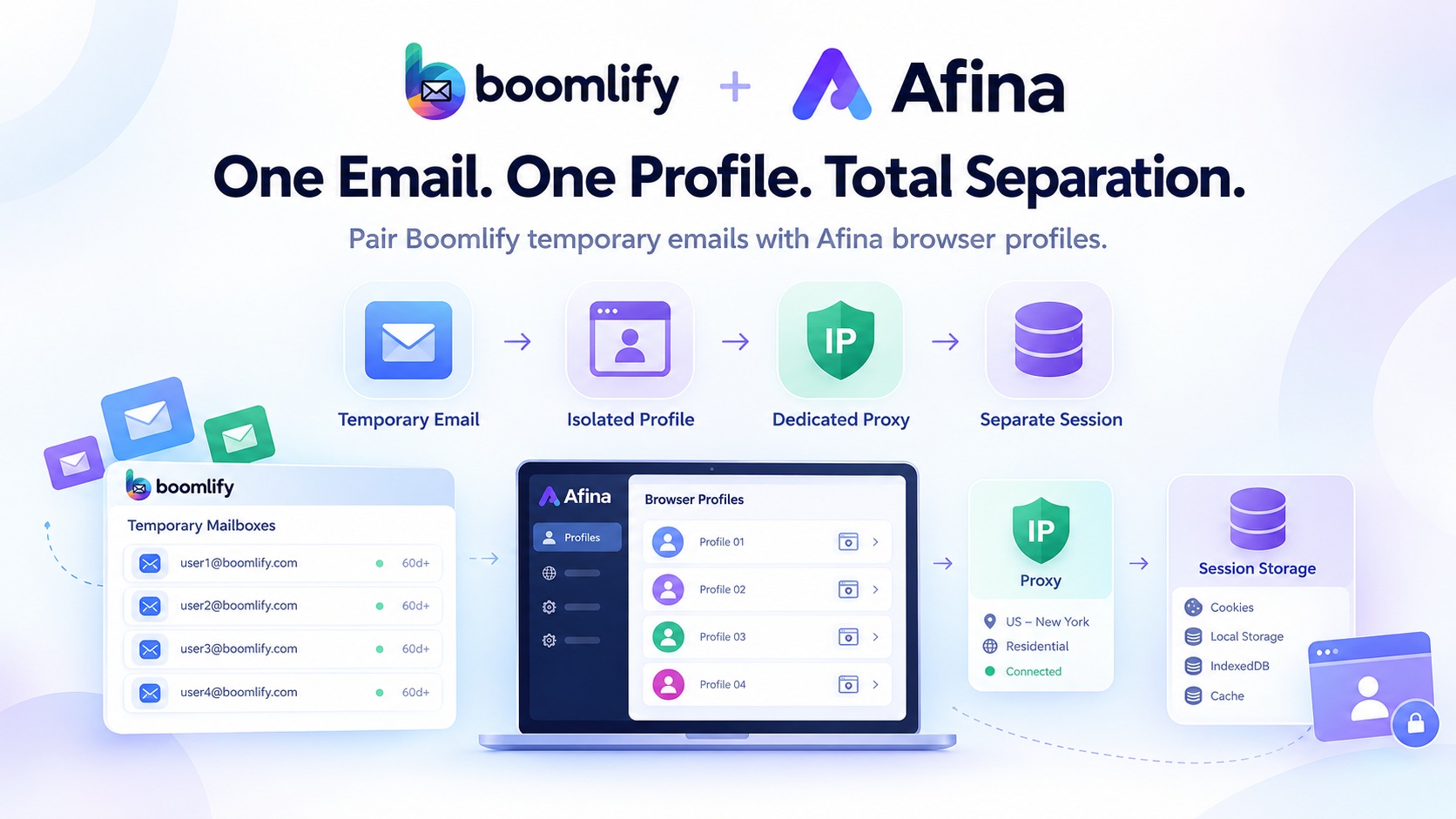
The Boomlify and Afina Browser workflow assigns one email address and one isolated browser profile to each account. Mail and session data stay separate between profiles. A unique address alone will not hide a shared IP or identical fingerprint, so every layer must be configured correctly.
Boomlify creates temporary addresses without mandatory registration. They remain available much longer than the usual 10-minute inboxes. Afina antidetect browser separates the browser environment for each account. The practical model is straightforward: one Boomlify address is paired with one Afina profile, its own proxy, and its own session history.
This makes dozens of registrations easier to track. The profile name leads to the right mailbox, while the address shows which account it belongs to. Reusing an address, proxy, or profile breaks that separation.
Why one email per account is not enough
Email is only one signal a platform can see. It also reads the IP, cookies, local storage, and fingerprint parameters. Two addresses opened in the same browser over one network still leave a technical connection.
Signal | What the platform sees | How to separate environments |
registration, confirmation, and recovery address | a separate Boomlify address for every account | |
IP | country, ASN, network type, and repeated logins | a separate stable proxy for every profile |
Cookies and local data | previous logins, session tokens, and LocalStorage | a separate Afina profile with its own storage |
Digital fingerprint | User-Agent, Canvas, WebGL, language, and timezone | a consistent fingerprint inside each profile |
Email handles registration, verification, and account recovery. It does not isolate the browser. Different addresses will not help much if profiles share cookies or connect through the same unstable proxy because the antifraud system still receives a common technical signal.
What Boomlify brings to multi-account work
Boomlify creates a separate temporary mailbox for every registration. Smart Inbox Preview displays the latest messages on the dashboard, so several verification codes can be checked without opening each mailbox.
Boomlify addresses remain valid for at least 60 days, depending on the plan. Custom domains help organize addresses by project, while registered users can sync mailboxes across devices. The service also includes a password generator and 2FA manager. Check current retention periods and limits on the Boomlify pricing page.
Check the mailbox lifetime before registering an account. If the account will remain active longer, extend the address or choose a plan with the required validity from the start. Leaving that decision until later is risky. A password recovery email sent several months from now may have nowhere to arrive.
How Afina keeps every profile separate
Separate email addresses need separate browser environments. In Afina, every profile runs in its own Chromium process and has a dedicated folder for cookies, cache, LocalStorage, and IndexedDB. Browser profiles do not exchange session data, so authorization from one profile does not carry over to another.
Real device fingerprints
Each profile receives its own set of parameters, including User-Agent, CPU, RAM, Canvas, WebGL, language, and timezone. Changing every available value is not the goal. The values need to agree with one another. The IP country, browser language, and timezone should describe the same plausible environment.
A proxy for every profile
A proxy separates the network context of a profile. Afina supports HTTP, HTTPS, and SOCKS5 and can show the connection status, outgoing IP, and country before an account is opened. If a large group of profiles connects through one IP, separate addresses and sessions no longer provide the intended separation.
Cookies and sessions per profile
Cookies and cache remain inside the selected profile. On the next launch, the account returns to its own authorization history while neighboring sessions stay closed. The working rule is simple: always launch an account in the profile assigned to it.
One Boomlify address per Afina profile: step by step
Use the same setup order every time. Create the mailbox, record it, open the matching profile, and add the proxy. This makes it harder to paste an address or code into the wrong window.
Open Boomlify and create a new address. Record it next to the planned profile name. For a long-term account, check the mailbox lifetime and access from the devices your team uses.
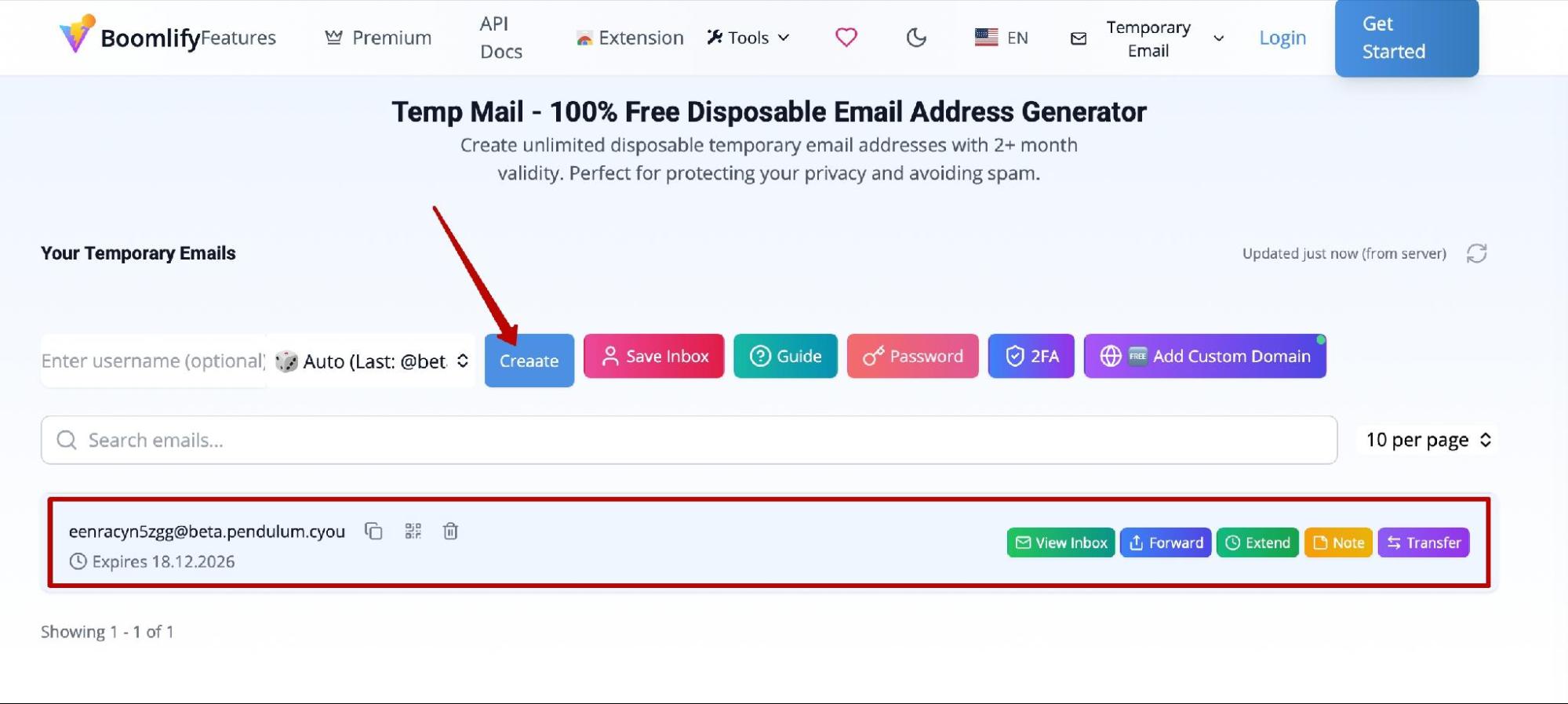
Creating a temporary email address in Boomlify
Open Afina and create a profile for the account. Give it a name that clearly identifies the assignment without exposing a password or other sensitive data.
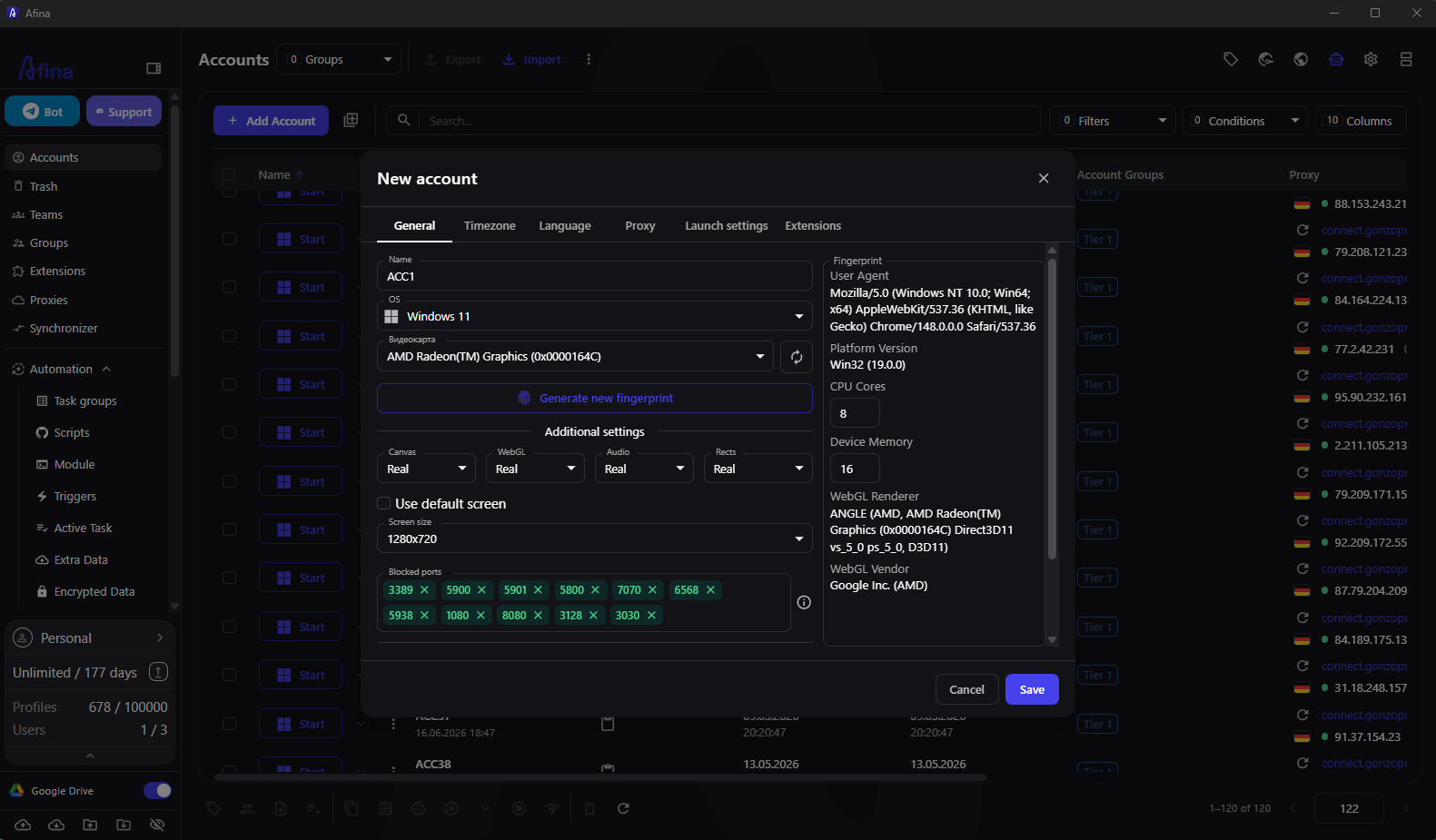
Creating a new profile in Afina
Select the operating system, language, and timezone. Match them to the proxy location. A consistent profile is more credible than a random collection of changed settings.
Open the proxy settings, choose the correct protocol, and enter the host, port, username, and password. Do not reuse the same proxy for independent accounts. Otherwise, different profiles will connect through one network address.
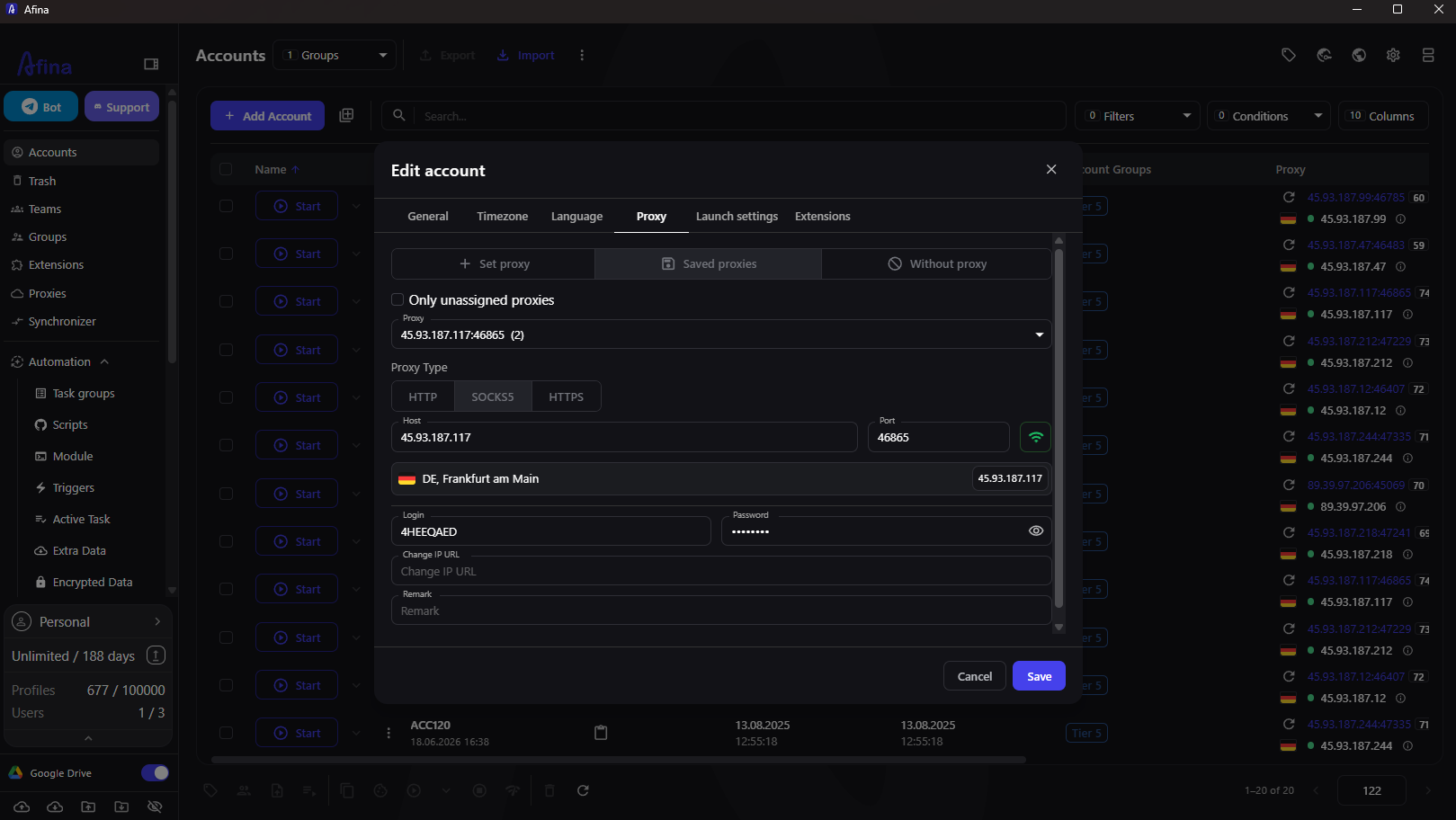
Configuring a proxy in an Afina profile
Save the settings and run the connection check. Afina should display an active status, the expected outgoing IP, and the correct country. If any of these values is wrong, stop before registering the account.
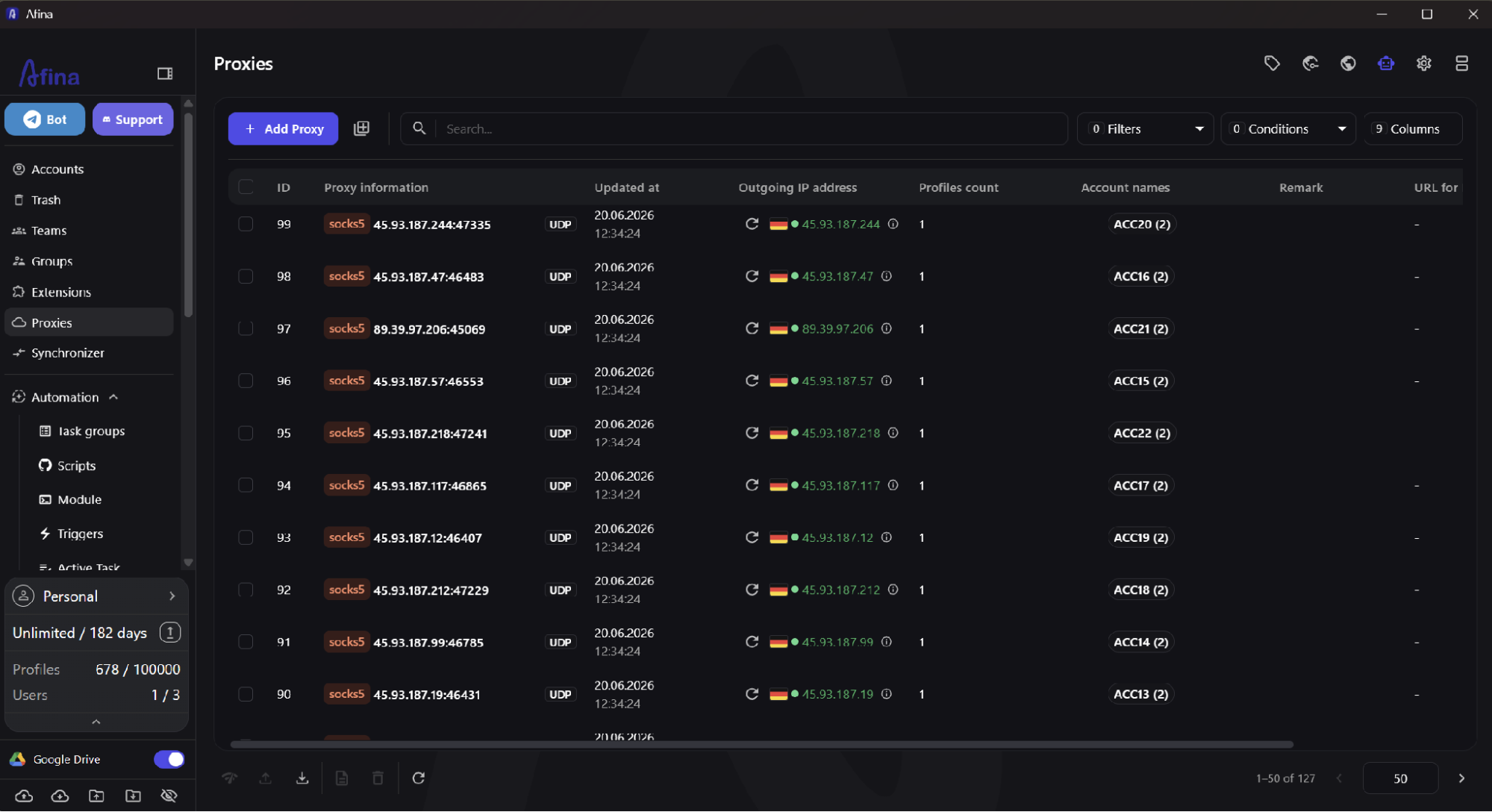
Checking the outgoing proxy IP in Afina
After a successful check, add the Boomlify address to the profile's extra data or to the team's mapping sheet. Four fields are usually enough: profile name, email, proxy ID, and account purpose. Store passwords in encrypted data rather than in an open note.
Launch the profile and register the account on the required website. Open the confirmation message in Boomlify, then enter the code in the same Afina window. Keep a separate 2FA secret for every account. Mixing up codes is surprisingly easy when several mailboxes are open.
Before the first working login, test WebRTC. The public WebRTC address should not expose another IP or conflict with the proxy assigned to the profile.
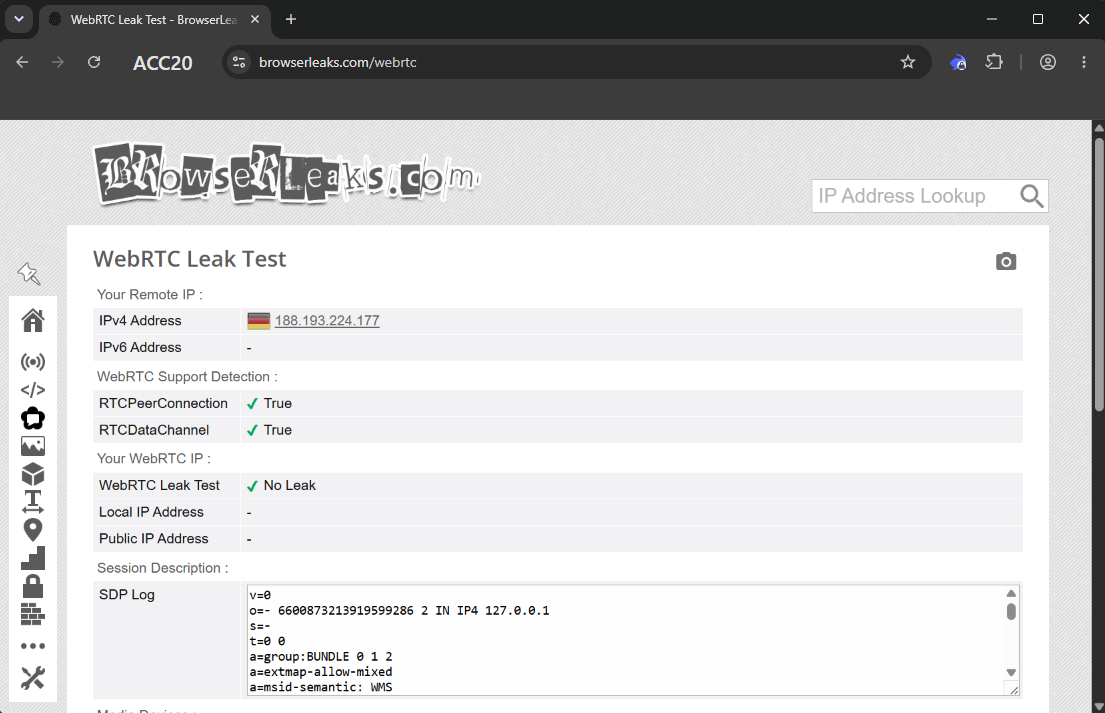
Testing WebRTC for real IP leaks
Keep the pairing unchanged unless there is a real reason to update it. The Boomlify address belongs to one account, and that account opens only in its assigned Afina profile. In practice, this discipline is more useful than complicated automation that a team cannot properly monitor.
Scaling to dozens of profiles
Manual email-to-profile pairing works while the account count is small. At scale, operator errors become the main problem: an address lands in the wrong row, a proxy is assigned twice, or someone launches the neighboring profile.
Afina supports bulk profile creation. Prepare a clear naming template first, create the required records in one operation, and then compare the result against the Boomlify address sheet.
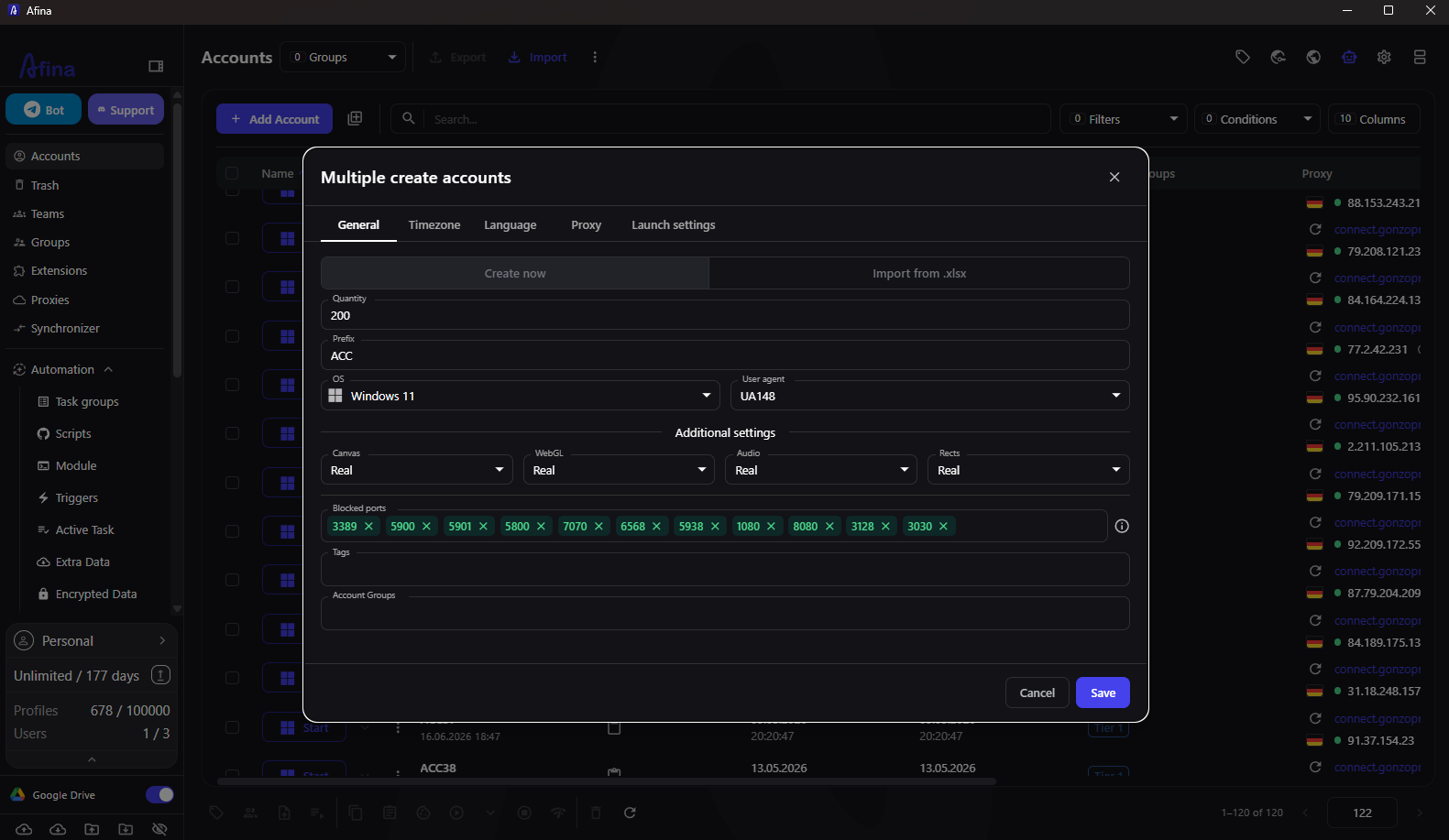
Creating Afina profiles in bulk
Assign proxies from a saved list or import prepared mappings. Before a bulk launch, manually check several outgoing IPs. One formatting error can spread across the entire batch, so a short sample check saves real cleanup time.
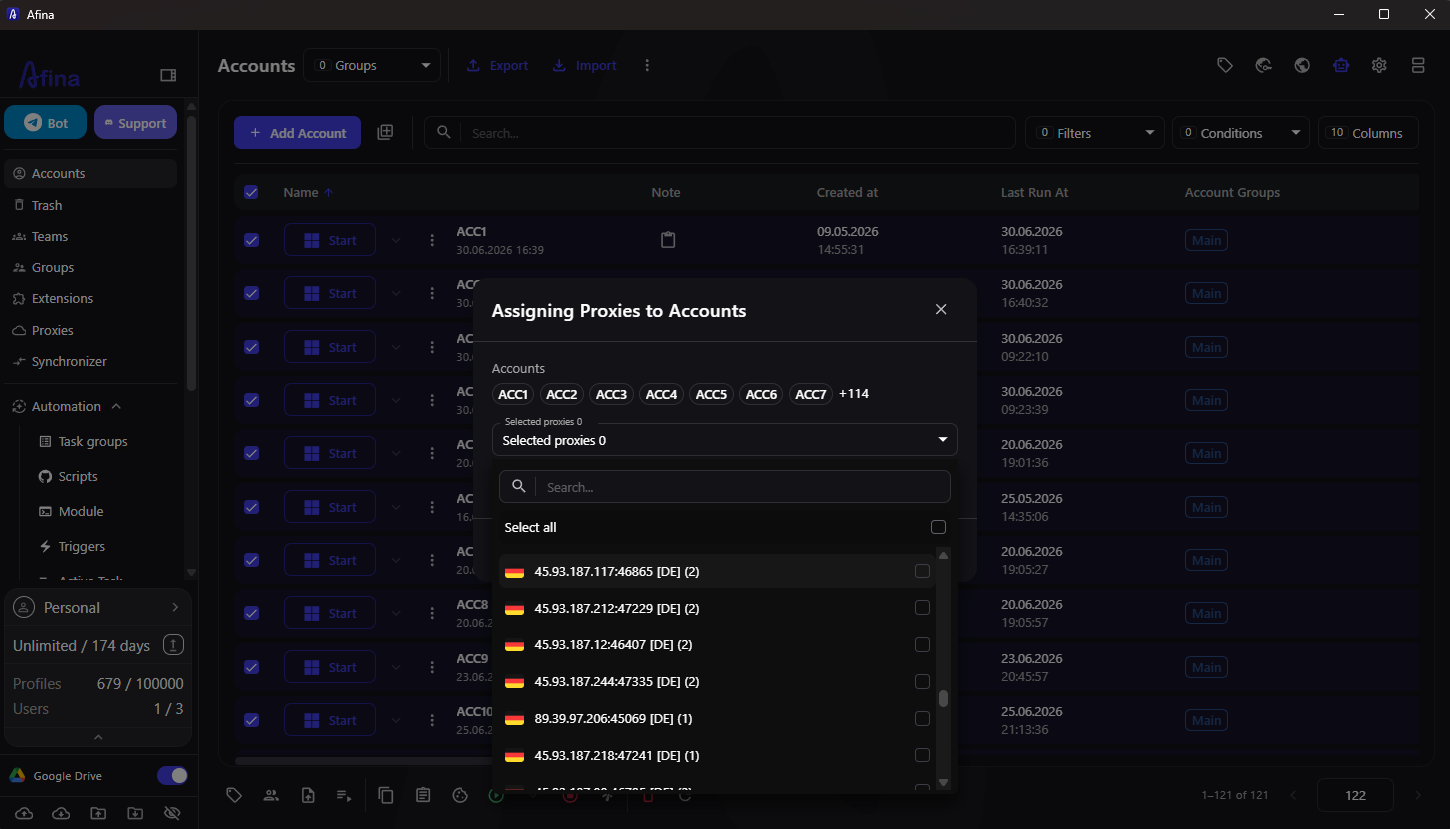
Assigning proxies to Afina profiles in bulk
The completed spreadsheet can be used to import account data from Excel. Afina accepts extra key-value fields, which means a Boomlify email can be stored as a profile attribute. Boomlify API can generate the addresses programmatically. There is no ready-made native integration between the services: the team generates and checks the address set first, then imports the prepared data into Afina.
Mistakes that link accounts
The most common mistake is reusing the same resource. One email directly connects registrations. A shared proxy repeats the network signal, while opening several accounts in one profile mixes cookies and session history.
Short-lived mail creates another problem when an account is expected to remain active for months. Confirm that the mailbox will stay accessible for the entire working period. Avoid changing the proxy, country, language, or digital fingerprint between sessions without a clear reason. A sudden shift in these parameters can look suspicious even when the email remains the same.
A workable setup depends on a clear mapping: one Boomlify address, one Afina profile, a separate proxy, and its own session. This does not remove platform checks. It does prevent a team from accidentally mixing the signals itself. This material is provided for informational and educational purposes only.
Promo code for new users:
- SALE20 - 20% off Base, Standard, and Max plans; new accounts receive Base free for four days
FAQ
Is it safe to use temporary email for long-term accounts?
Yes, if the mailbox remains valid for the full working period and access can be recovered. Check the address lifetime and extension terms before registering an important account.
How many profiles can share one Boomlify address?
One Boomlify address should belong to one profile. Reusing the same email directly connects separate registrations.
Can I keep 2FA codes in Boomlify?
Yes. Boomlify includes a 2FA manager with local storage, while cloud synchronization depends on the selected plan.
Do I need a proxy if every account has its own email?
Yes, because an email address does not change the IP or ASN. Each profile needs a separate stable proxy to isolate its network context.
Written by
Boomlify Team
writer
The Boomlify content team writes about disposable email, account privacy, and organized multi-account workflows. We test the tools we write about and turn what we learn into clear, step-by-step guides, so you can set things up once and keep them running smoothly.
Found this useful?